The anonymous surfing sites are the sites from which you can view any
sites anonymously and also view blocked websites .Also you can hide your
ip-address by using these sites.You can now browse any websites which
are blocked in specific country,school,office etc. by entering your
blocked site in these free anonymous surfing sites.These sites uses
proxies which hide your ip-address .So any site cannot track your
information and you can be hidden for any site.All the below sites
contains no pop-up ads and are fast and free
Saturday, 10 May 2014


How to see hidden files and folders in XP?
Windows XP contains many hidden files and folders which cannot be seen
while exploring folders normally.To view all these hidden files and
folders just follow these steps:
First Method:
>>Open My Computer
>>At left-top menu ,you can select Tools>Folder Options
>>Now select View tab to see Show Hidden files and folders option
>>Select That option to see all Hidden files and folders in XP
Second Method:
>>Go to Start>Run Type cmd to open command prompt
>>Now command prompt type dir /ah to see hidden files and folders
*/ah - attribute=hidden
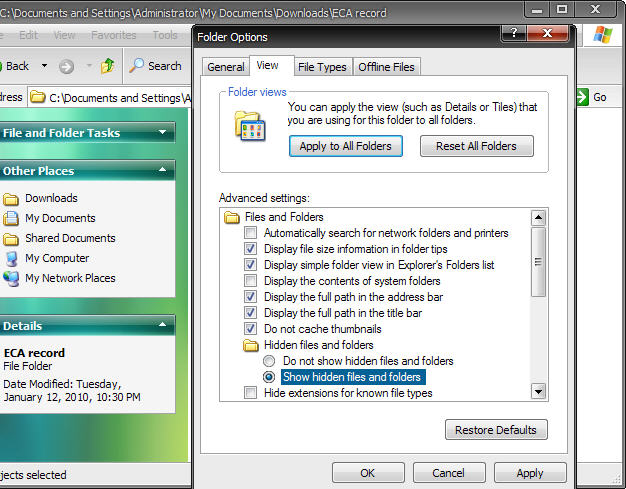 |
| Click on the image to zoom |
>>Open My Computer
>>At left-top menu ,you can select Tools>Folder Options
>>Now select View tab to see Show Hidden files and folders option
>>Select That option to see all Hidden files and folders in XP
Second Method:
>>Go to Start>Run Type cmd to open command prompt
 |
| Click on the image to zoom |
*/ah - attribute=hidden
Change windows default Program FIles directory
Now
you can change windows default program files directory (which is
usually C:\Program Files) using registry editor by just following these
steps:
>>Go to Start>Run , type regedit to open registry editor
>> Now navigate to the following path HKEY_LOCAL_MACHINE\SOFTWARE\Microsoft\Windows\CurrentVersion
>>Select the CurrentVersion folder in the registry
>>In the right window pane you will see a string named ProgramFilesDir
>>Double Click that string change its value data directory to your own directory
>>For eg: If by default the string value is C:\Program Files then you can change is to D:\Program Files
>>Now when you install any program(software) the program will paste its installation files and other data in D:\Program Files directory not in C:\Program Files directory
*This trick can be useful when your default(C:\) drive has less free space
>>Go to Start>Run , type regedit to open registry editor
>> Now navigate to the following path HKEY_LOCAL_MACHINE\SOFTWARE\Microsoft\Windows\CurrentVersion
>>Select the CurrentVersion folder in the registry
 |
| Click to zoom |
>>Double Click that string change its value data directory to your own directory
>>For eg: If by default the string value is C:\Program Files then you can change is to D:\Program Files
>>Now when you install any program(software) the program will paste its installation files and other data in D:\Program Files directory not in C:\Program Files directory
*This trick can be useful when your default(C:\) drive has less free space
Delete temp folder upon exit
Now you can automatically delete your temporary folder upon exit by just following these steps:
 |
| Group Policy Editor |
>>Go to Start>Run , type gpedit.msc to open Group Policy editor
>>Expand Computer Configuration>Administrative Templates>Windows Components>Terminal Services>Temporary Folders
>>In right window pane select Do not delete temp folder upon exit
>>Double click and disable it to automatically remove your temporary folder on every exit from your PC.
Delete files without moving deleted files to Recycle Bin
Whenever a file is deleted , it moves into recycle bin.But not from the
hard disk.So to remove any file from hard disk directly without moving
it to Recycle Bin just follow these steps:
 >>Go to Start>Run , type gpedit.msc to open group policy editor
Alternate:You can also delete files from hard disk without placing it in hard disk by selecting file and pressing Shift + Delete keys at a time
 >>Go to Start>Run , type gpedit.msc to open group policy editor
>>In group policy editor , expand User Configuration>Administrative Templates>Windows Components and select Windows Explorer
>>On right window pane you can see Setting : Do not move deleted files to recycle bin
>>Double Click it and select Enabled and click Ok
>>That's it now you can delete files in your hard disk without moving it in Recycle Bin
Alternate:You can also delete files from hard disk without placing it in hard disk by selecting file and pressing Shift + Delete keys at a time
Terminate crashed applications faster
 |
| Termintate crashed application faster |
>>Go to Start>Run>Type regedit to open registry editor
>>Navigate to the following key : HKEY_CURRENT_USER\Control Panel\Desktop
>>When you select Desktop , on right window pane you can see a string named HungAppTimeout
>>Double click that string and set its value to 1000 (default value:5000 in ms)
>>Now windows can recognize crashed application within and allow you to kill it within a second
Add or remove your username in Start Menu
By default , windows shows your username at the top of start menu.If you want to remove this , you can just follow these steps:
>>If you can see a Dword value named NoUserNameInStartMenu then double click that key and change its value to 1 if you want to see remove username in Start Menu
>>Go to Start>Run . Type regedit to open registry editor
>>Now navigate to the following key : HKEY_CURRENT_USER\Software\Microsoft\Windows\CurrentVersion\Policies\Explorer
 |
| Click to zoom |
>>Change its value to 0 if you want to see username in StartMenu
*If you cant see the above Dword value. Create a new dword value by right clicking on the right window pane and rename it to NoUserNameInStartMenu
Subscribe to:
Posts (Atom)